Ride Operator Simulator RideOps Controls Reference
Know every Ride Operator Simulator panel so clear and dispatch never feel mysterious.
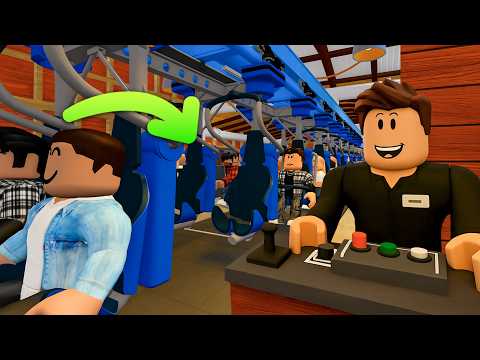
This Controls page is the panel glossary for Ride Operator Simulator (RideOps Simulator | BETA). It answers “what does this switch do?” without replacing the full procedures in How to Operate or the ride-specific Orkanen Walkthrough. Bindings and UI labels can shift during BETA—re-check after every Changelog entry.
Platform note (PC focus)
Several RideOps updates have temporarily emphasized PC while mobile or console bugs were fixed. Keyboard and mouse make panel hunting and restraint walks easier during early builds. If a Discord or TikTok note says “PC only while we fix other devices,” treat that as the live control environment for that week. See Beta Status.
Core control groups
Power box / power station
The main power interaction brings the attraction online. Nothing else in the operate loop is trustworthy until this is done. Community tutorials consistently start here.
Power panels / per-panel switches
After main power, each power panel needs its switches set. Think of panels as distributed breakers. Missing one panel often looks like “the game is broken” when it is simply incomplete energizing.
Station lights
Station lights illuminate the platform and booth area. Turn them on for visibility during restraint walks and guest seating checks. Operating in the dark is a self-inflicted handicap.
Station doors / entrance gates / air gates
These controls admit guests from the queue into the station. Open only when you are ready to board; close before locking restraints and clearing. Leaving a gate open is a classic reason clear refuses to go green.
Restraint unlock / lock (master)
Unlock lets riders exit or enter. Lock secures the train for dispatch. Always lock after gates close. Master controls may not replace every row interaction—see below.
Per-row / per-seat restraint interactions
Orkanen-style operation often expects you to confirm restraints along the train, not only at the booth. Walk the platform and interact with any open bars the UI highlights. This is the difference between “I clicked lock” and “the train is actually ready.”
Clear
Clear is the interlock acknowledgment that gates are closed and restraints secured. Do not clear mid-walk. If clear fails, re-check gates and restraints before spam-clicking.
Dispatch
Dispatch sends the train. Some builds want a firm press or a control that stays engaged—learn the feel on Orkanen, then relearn after UI patches. Never dispatch with guests still boarding.
Queue selectors (main / Fast Track)
When multiple queues exist, selectors or gate choices decide which line feeds the station. Balance them so guest satisfaction stays healthy and Coaster Credits keep flowing.
CCTV / cameras
CCTV (when present in your build) lets you monitor gates and corridors without leaving the operate mindset. Use it between cycles, not as an excuse to skip walks.
Assist versus operator booth
Some tutorials distinguish assist helpers on the platform from the operator booth that owns clear/dispatch. In co-op, assign roles explicitly—see Multiplayer.
Suggested hotkeys and habits (client-dependent)
Roblox experiences rarely publish a fixed WASD-style chart for every panel. Instead, adopt habits:
- Face the control you intend to use—mis-clicks on adjacent switches cause softlocks.
- After any patch, spend one empty cycle confirming power → lights → doors → lock → clear → dispatch.
- Keep chat or Discord open for crew calls (“gates closed,” “row three clear”).
- Prefer PC during announced device bug-fix windows.
- Do not install “auto dispatch” scripts; read Safe Script Usage.
The embedded startup tutorial video walks power box, panels, maintenance/camera mentions, restraints, and gates in sequence.
Control order cheat sheet
Cold start: power station → power panels → station lights → (optional CCTV check) → doors when ready.
Each train: unlock if needed → open gates → board → close gates → lock restraints → walk rows → clear → dispatch → wait for return → unlock/unload → repeat.
Print that order mentally. Every future ride in RideOps reuses it even when art and restraint counts change.
What is not a control (yet)
- Engineer call buttons may exist as stubs without finished repair gameplay.
- Promo code fields may be absent; do not invent codes—see Codes.
- Career day meters may reset while credits persist—operate for credits, not vanity shift clocks.
Troubleshooting controls
If a labeled control does nothing, work through Troubleshooting before blaming your keyboard. Most “broken dispatch” reports are missed panels, open gates, or outdated mobile clients during PC-only phases.
Related pages
- Orkanen Walkthrough
- How to Operate
- Getting Started
- Changelog
- Links Hub for Discord when UI labels change overnight
Know the controls, then earn the speed. RideOps rewards operators who respect interlocks.
Frequently Asked Questions
Quick answers for Ride Operator Simulator players.
What should I click first on a cold station?
The main power station / power box, then every individual power panel, then station lights. Doors come after the ride is energized.
Why won’t clear activate?
Usually a gate is still open or a restraint is still unlocked. Close gates, finish locks and walks, then clear again.
Do I need CCTV to play?
No, but when your build includes cameras they help monitor queues and air gates between dispatches.
Are controls the same on mobile?
Touch layouts differ, and some BETA windows prefer PC. Check Beta Status and Changelog before assuming mobile is fully supported that week.
Where is the full operate procedure?
Use How to Operate for the phase model and Orkanen Walkthrough for the first coaster’s step-by-step cycle.